

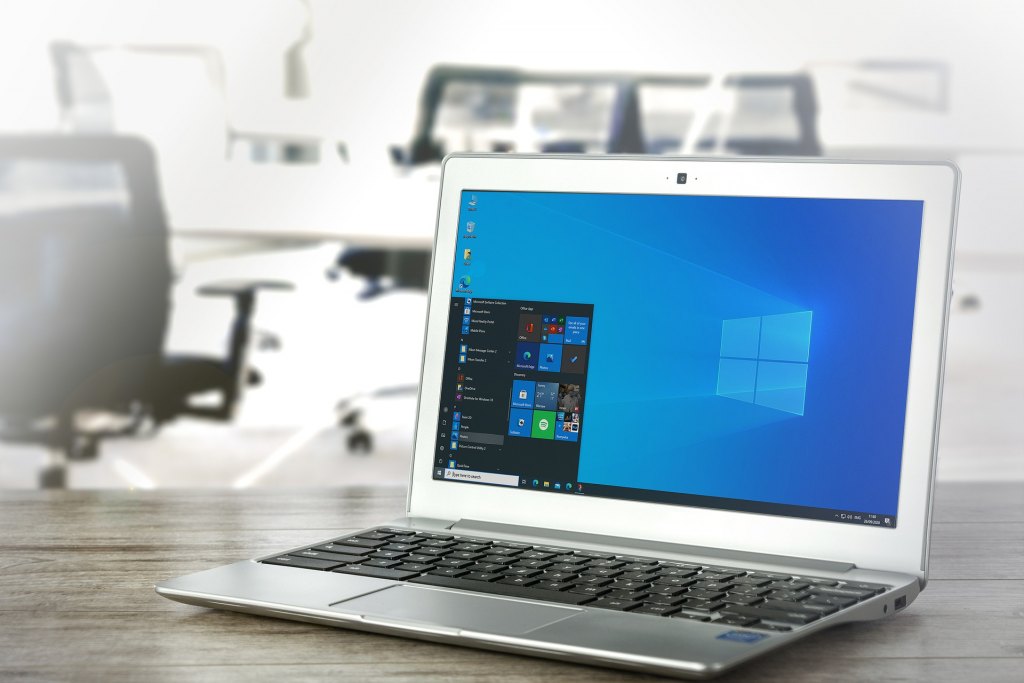
Windows 11 brings in a more dynamic configuration and a new settings app as it optimizes user experiences from previous versions. Remarkably, Microsoft has also accounted for the likelihood of users being confused by the new settings interface. Hidden within its configuration is a folder that consolidates a wide range of settings designed like the classic Windows Control Panel: Windows 11 God Mode.
God Mode carries over 200 control settings, including advanced tools and features that are not easily accessed through the Settings app. Should settings for newer features be missing, the folder provides links through which these can be accessed. To minimize confusion, Microsoft organized the settings into categories that are arranged in alphabetical order by default. These range from general settings like File History and hardware controls to advanced controls like System settings and Administrative Tools.
Besides its centralized settings, Windows 11 God Mode affords users access to its Ease of Access Center. The folder category contains over 25 assistive configuration settings that cater to the physical and cognitive needs of users. The list includes “Accommodate learning abilities,” “Change how your mouse works,” and “Turn off unnecessary animations.” God Mode also provides a wide selection of troubleshooting topics, from fixing keyboard problems to recording steps to reproduce issues.
Activating Windows 11 God Mode
To access Windows 11 God Mode, a user has to create a new folder on the desktop screen and name it GodMode.{ED7BA470-8E54-465E-825C-99712043E01C}. Upon doing so, its icon will change from a normal folder to one for Control Panel. Double-clicking the folder opens up an expansive categorized list of settings. The number of settings varies depending on the Windows version a computer is running, but it usually amounts to more than 200.
Like with any Windows folder, the views of God Mode can be changed. If users feel overwhelmed by the staggering number of settings, they can switch the view to a more agreeable orientation, say, “Medium icons” or “Content.” Shortcuts can also be created for the settings by dragging and dropping each to the home screen. Moreover, the capabilities of God Mode can be expanded through CLSID.
Is God Mode Better Than Normal Mode?
The normal settings interface follows a simple and straightforward process that won’t likely confuse users. The configurations are also dynamic, allowing users to quickly adjust settings like screen brightness and notifications. However, normal mode isn’t as comprehensive as God Mode. There are settings on the latter that aren’t easily accessed under normal mode.
Another huge advantage of God Mode is familiarity. Longtime Windows users are accustomed to the classic Control Panel. As such, performing adjustments with this orientation, whether simple or advanced, is clockwork for them. God Mode brings back not only the Control Panel format but also the old File Explorer orientation. This eliminates any complexity in adjusting settings, especially when working with sophisticated software like marketing automation platforms.
For users who prefer the normal mode, God Mode can come as a reserve option. This particularly applies to advanced options, troubleshooting, and the Ease of Access Center. After all, God Mode is a folder on the home screen that can be accessed at any time.









 Why is FinancesOnline free?
Leave a comment!